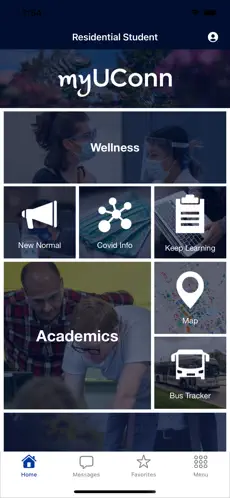
Step 1 – Download the myUConn App and Sign In
- Go to the App store on your phone
- Search for the MyUconn App
- Download the App
- Select a new persona – residential student or commuter student
- Sign in using your NetId
Step 2 – Add CSD to Your Favorites
- Click on the three bars in the top right corner
- Click Add favorites
- Select Center for Students with Disabilities by clicking on the +
- Click the three bars in the top right corner
- Choose Center for Students with Disabilities
- You will now see the CSD app home screen
Step 3 – Opt-In to Push Notifications
- Click the person icon at the top, right corner
- Click messages
- Choose Opt-in at the top from All Public Opt-in
- Go to Explore all opt-in channels by clicking the >
Select Center for Students with Disabilities to receive general announcements and reminders from the CSD by clicking the > and then clicking the Opt in green button at the top right
Select CSD-Beyond Access to receive announcements for participants in the Beyond Access Program by clicking the > and then clicking the Opt in green button at the top right
Select CSD-UCIS (Interpreting Services) to receive announcements for recipients of d/Deaf and hard of hearing services by clicking the > and then clicking the Opt in green button at the top right - You can Opt out anytime